How to use Bhraman
Everything from your first trip to publishing a template. The app is in development, so steps may change slightly at launch.
Get started
Create an account with email, Google or Apple. The first time you sign in you will read and accept the Terms and Privacy Policy.
- Open Bhraman and tap Create account.
- Open Profile → Travel style and set your pace, budget, interests and food needs. It takes about 30 seconds.
- From now on, every AI plan is shaped by those choices.
Plan a trip with AI
Tap the big + button, then choose Plan with AI. Describe the trip in your own words.
- Say where you want to go and what you enjoy. Add dates; if you leave them out, the planner asks for exact dates.
- Optionally choose pace, budget and group size.
- Review the plan: tick or untick items and whole days, Swap a stop, or open Earlier suggestions to go back to a previous version.
- Tap Add selected. The trip opens on its Plan tab.
Build your itinerary
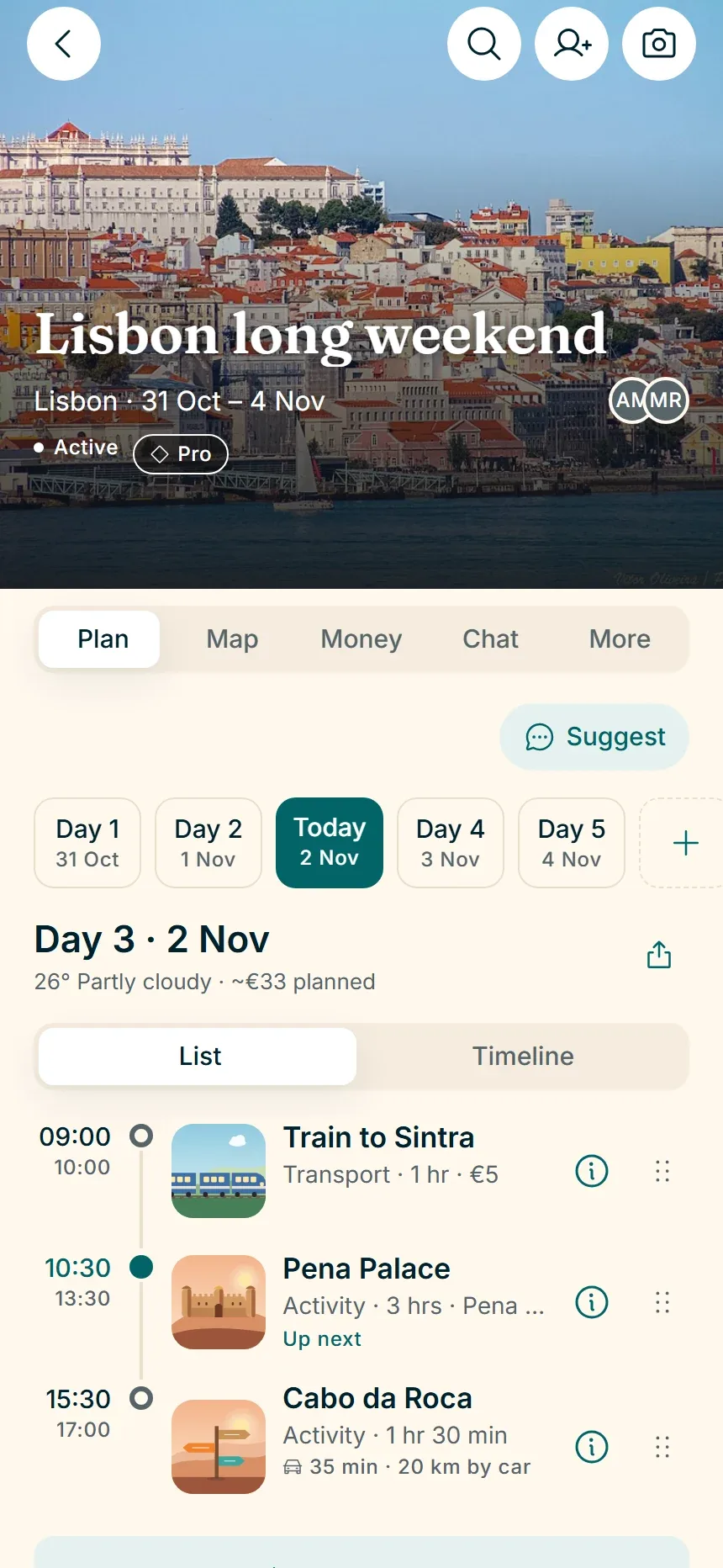
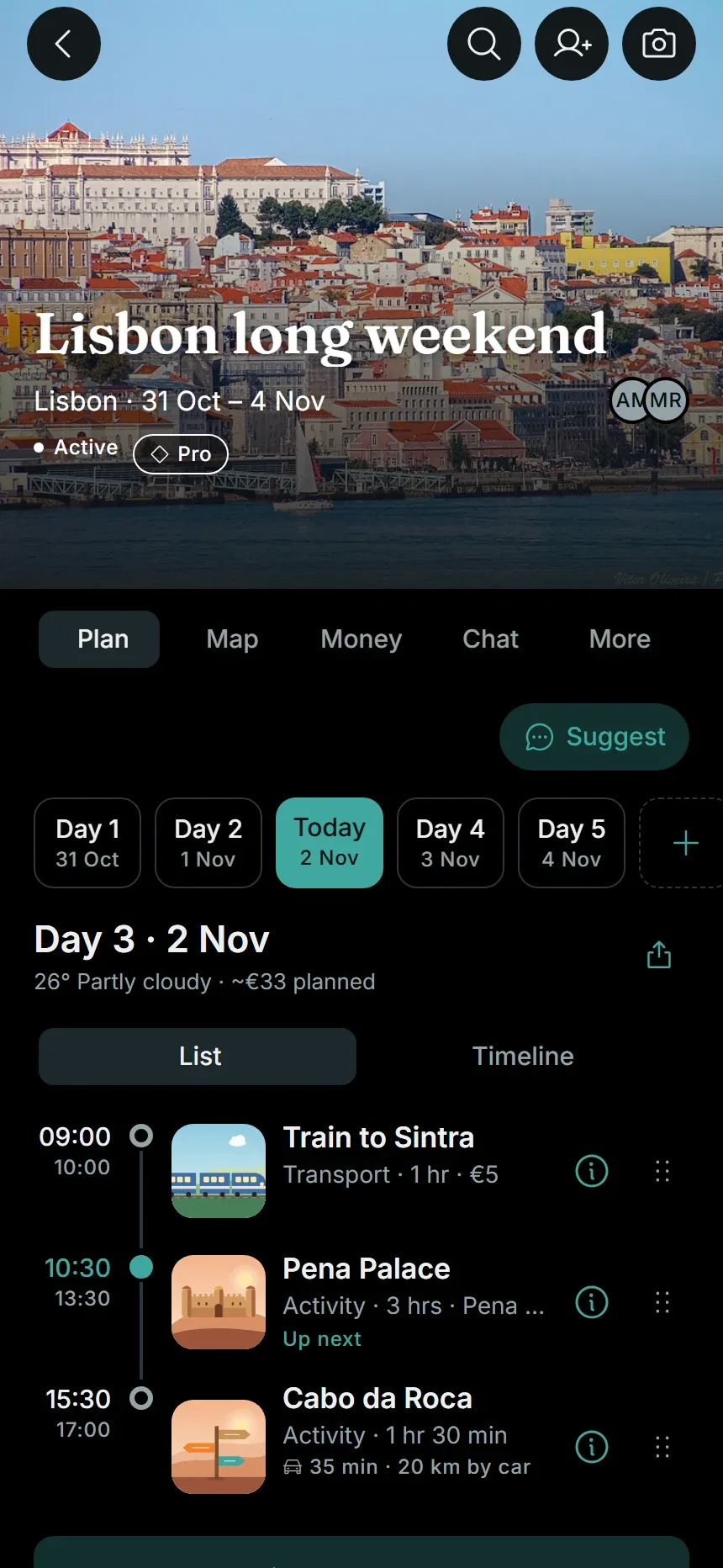
Open a trip and use the Plan tab. Each day shows its stops with times, how long they take and a weather summary.
- Pick a day at the top, or tap + to add a day.
- Switch between List and Timeline.
- Tap the i on a stop for a summary, directions, links and comments.
- Drag to reorder. If two stops clash, tap Fix and the later one moves.
- Use Copy day, duplicate an item, or Share plan to send it to someone.
Invite your group
Trips are better together. Everyone sees the same plan, chat and expenses.
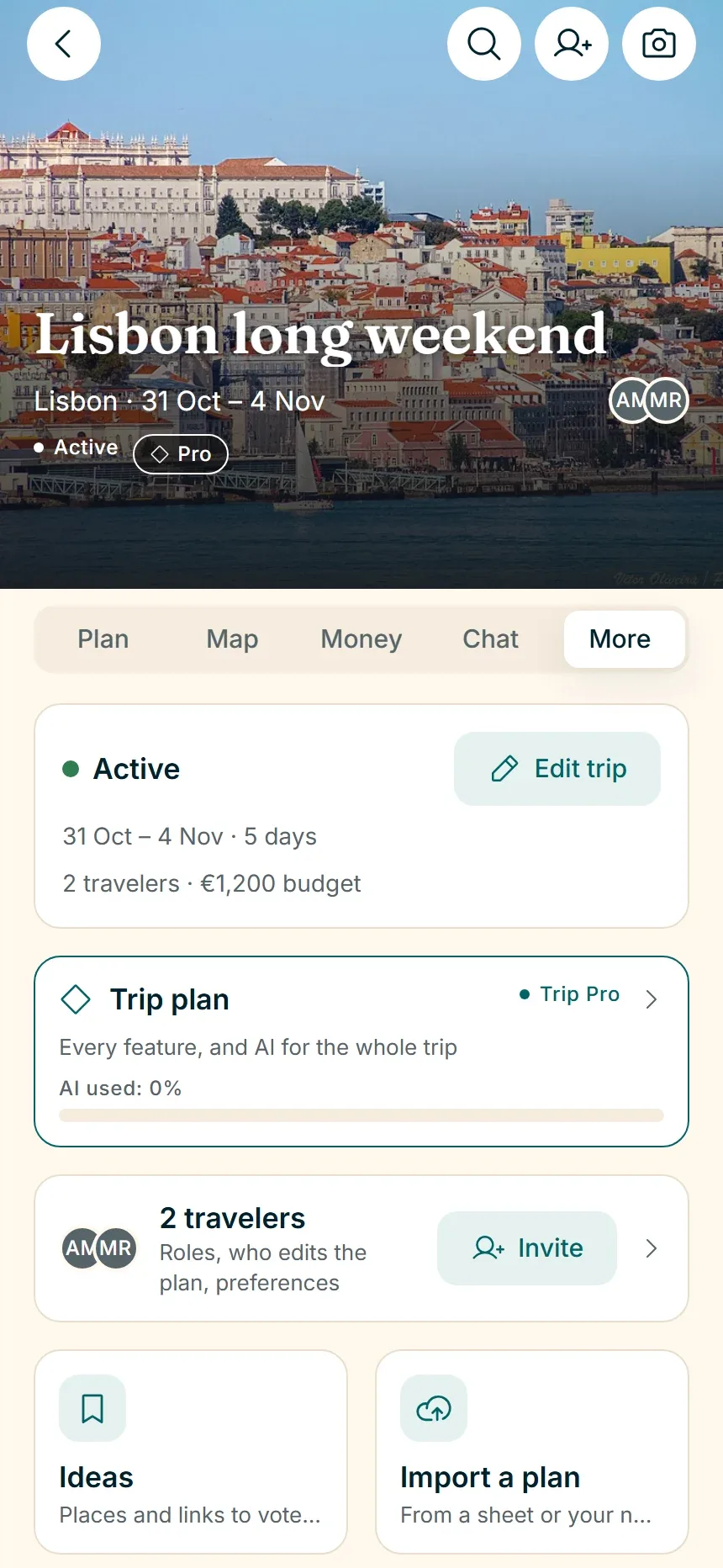
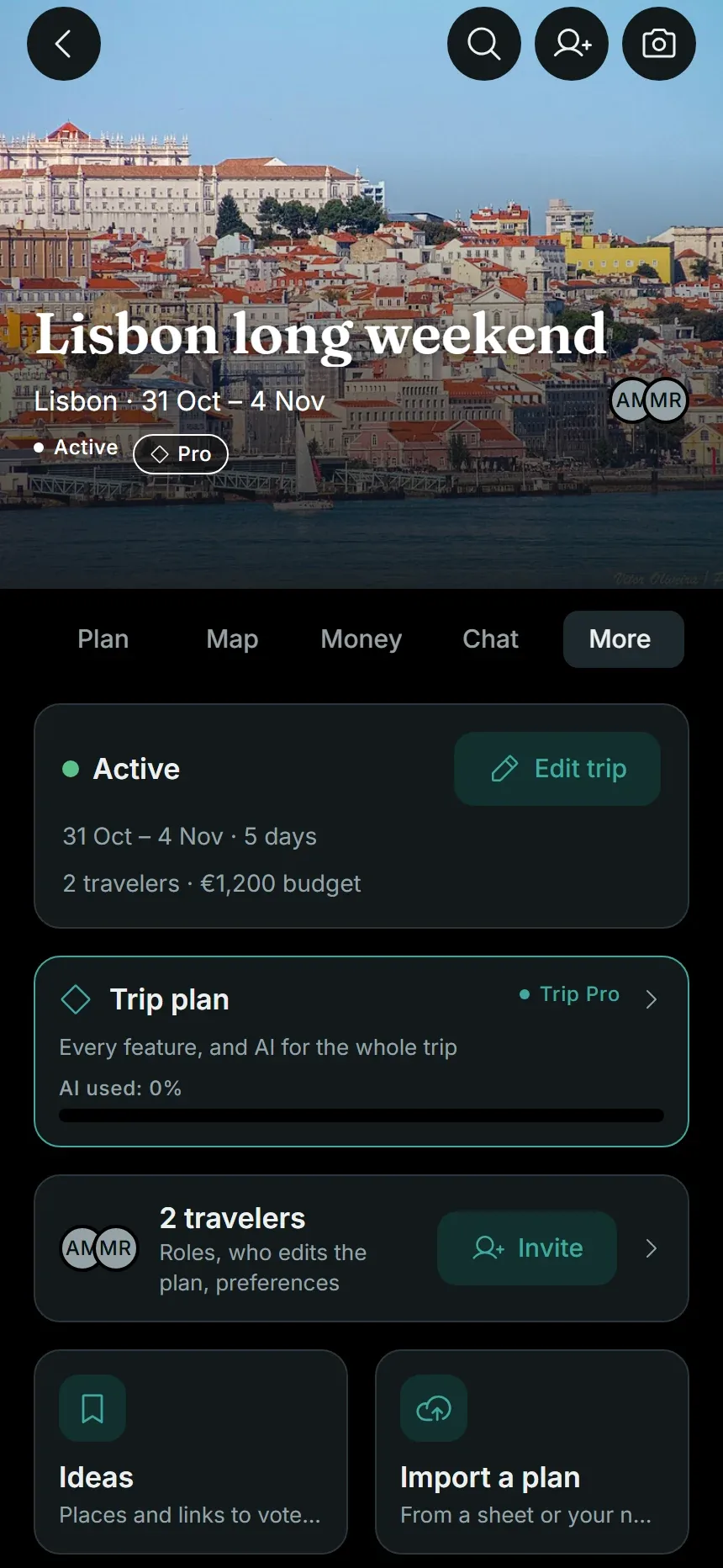
- Open the trip and tap the invite icon, or go to More → Invite.
- Share the invite or the join code.
- Friends open the link, or choose Join a trip with a code in Profile.
Each member has a role that decides who can edit the plan.
Chat and decide together
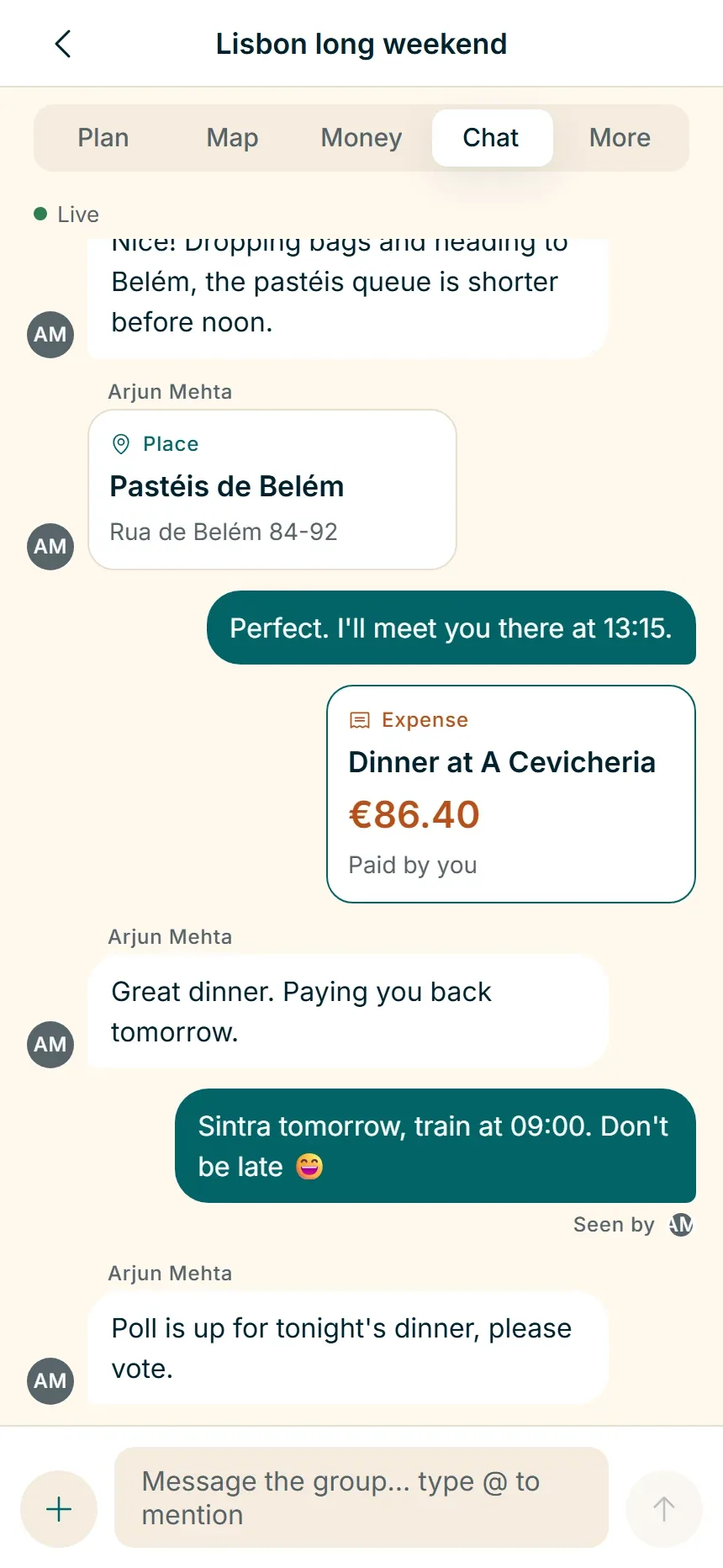
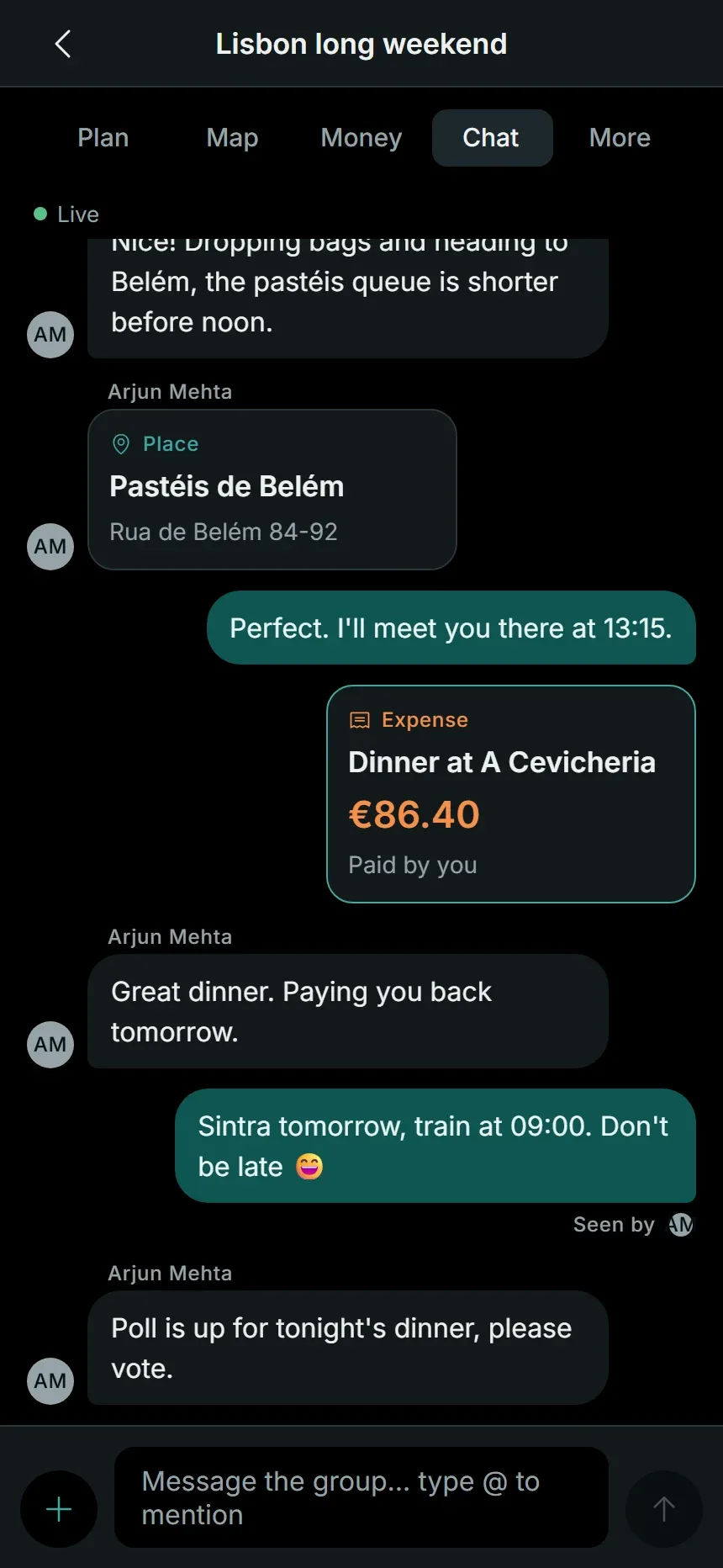
The Chat tab is a live group chat that belongs to the trip.
- Share a place or an expense straight into the chat.
- Create a poll so the group can vote on tonight’s dinner.
- Type @AI to ask for help. It reads only the last 40 messages, removes names, emails and phone numbers, and only suggests changes.
Track money and settle up
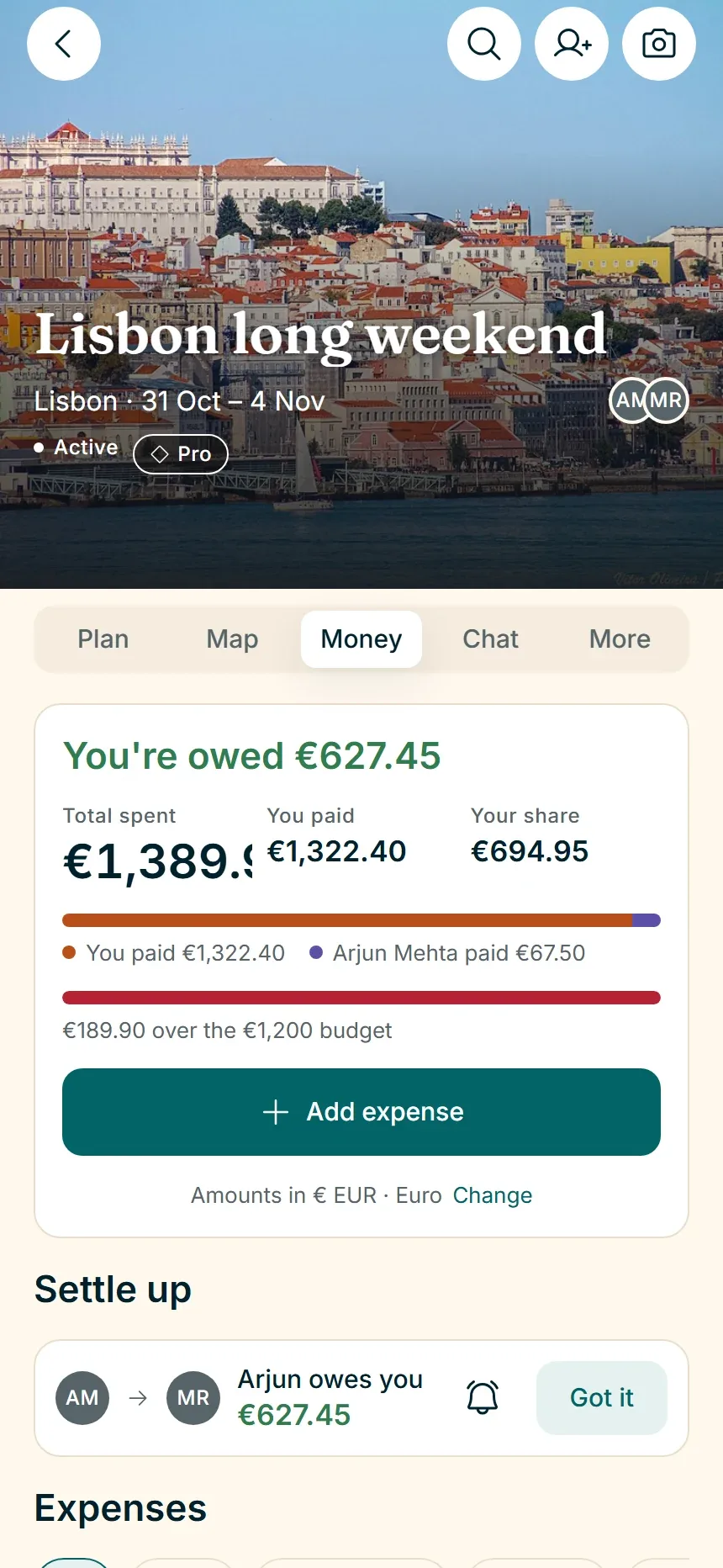
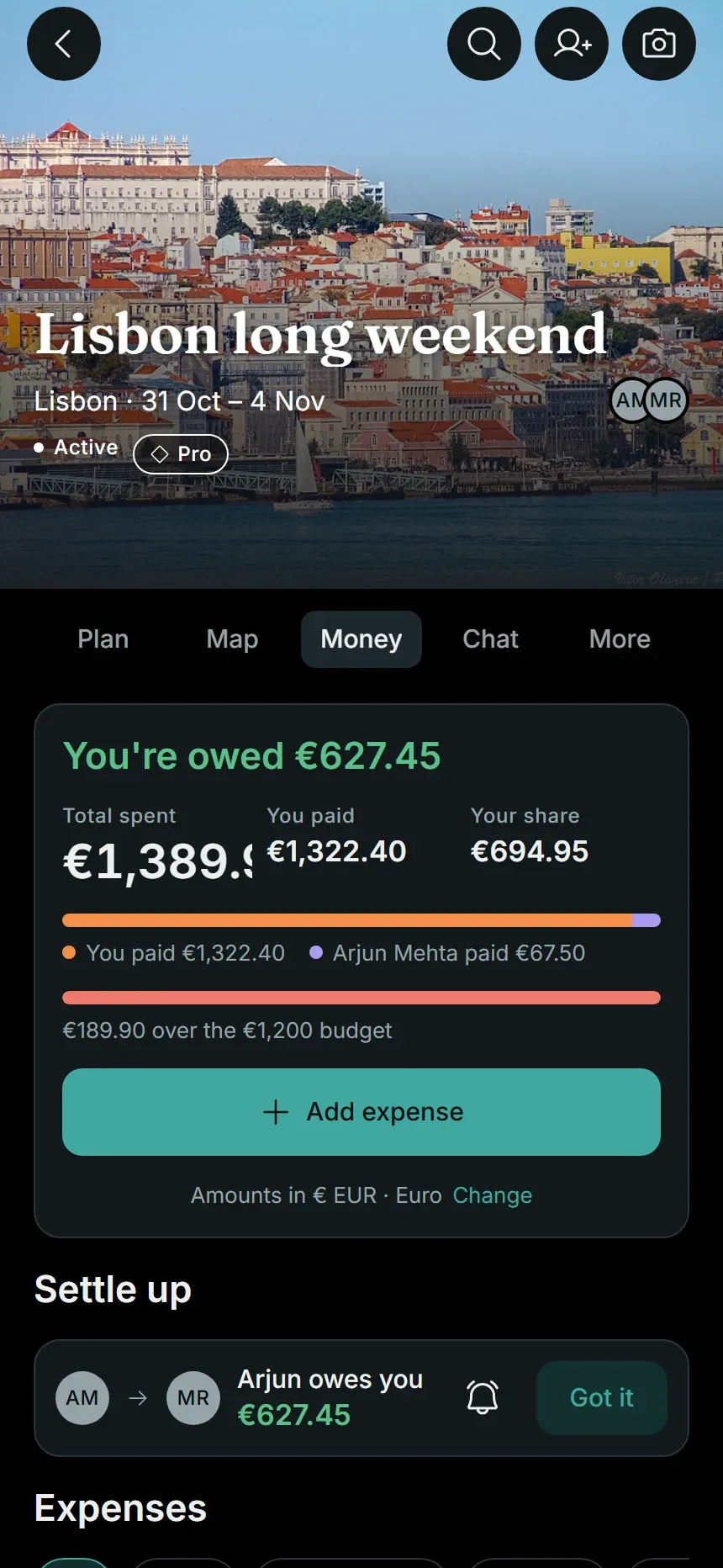
Open the Money tab to log costs and see how everything adds up.
- Tap Add expense, enter the amount and choose who shares it.
- Watch total spent, what you paid and your share, plus a budget bar.
- Under Settle up you see who owes whom. Send a reminder, or mark it settled.
You can change the currency for the trip with Change under the Add expense button.
Documents and checklists
The More tab holds the rest of the trip: Ideas for places and links, Import a plan from a sheet or document, a Checklist, and a private Document vault.
- Add passports, tickets and bookings to the vault so they are in one place.
- Use the checklist for what to pack and do before you leave.
On the trip
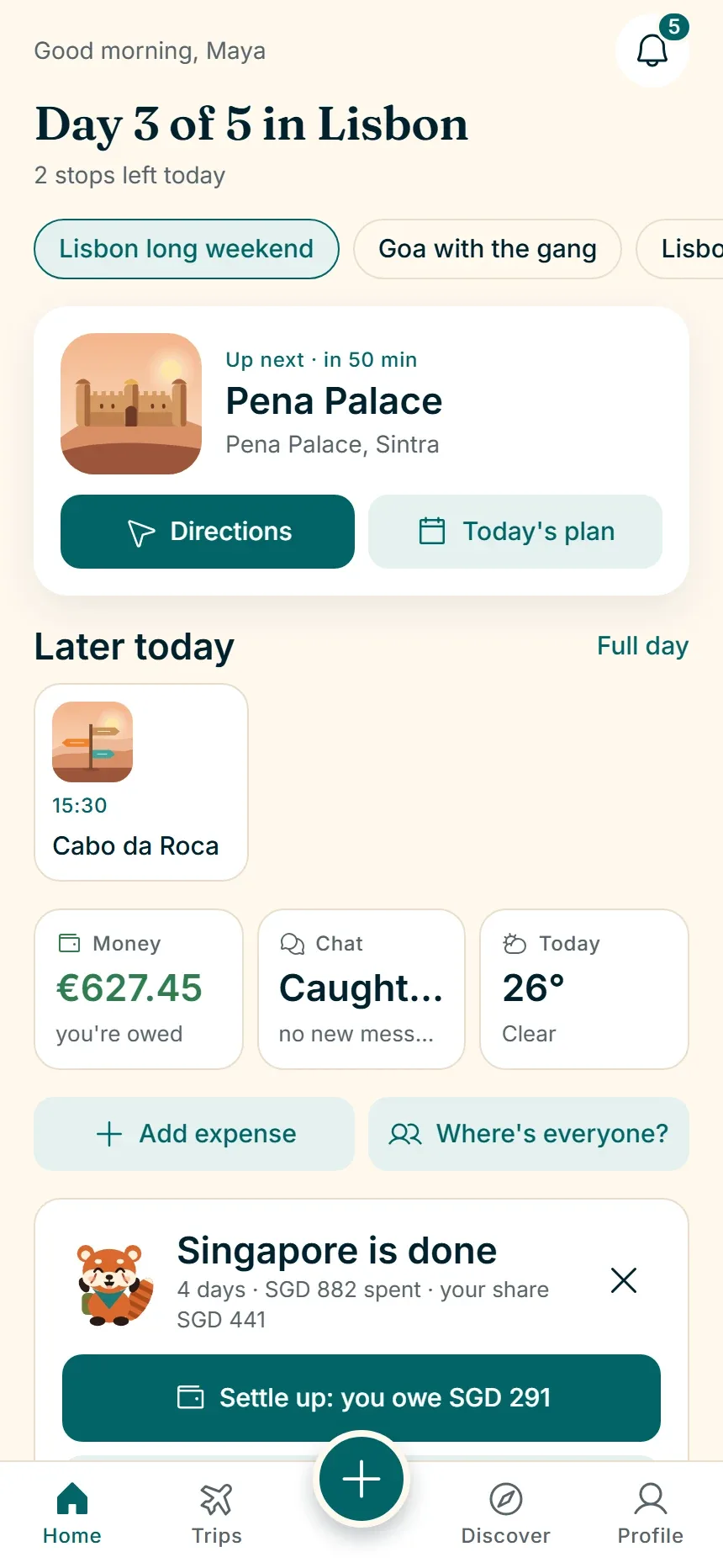
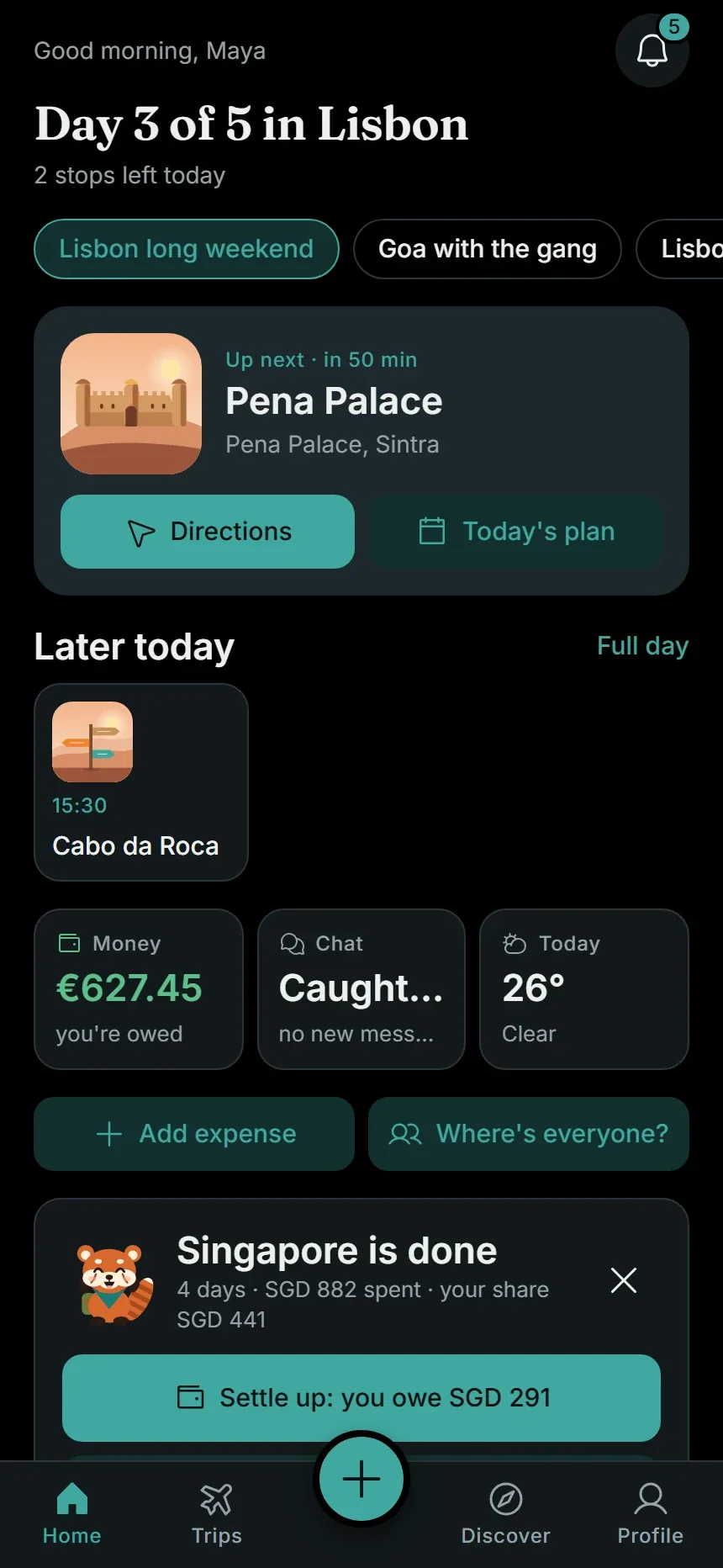
While you are travelling, Home becomes your day view.
- See what is next, with a Directions button that opens your maps app.
- Check today’s plan and the weather.
- Tap Add expense in a couple of taps, or Where’s everyone? to see who is sharing their location.
Templates: use, remix, share
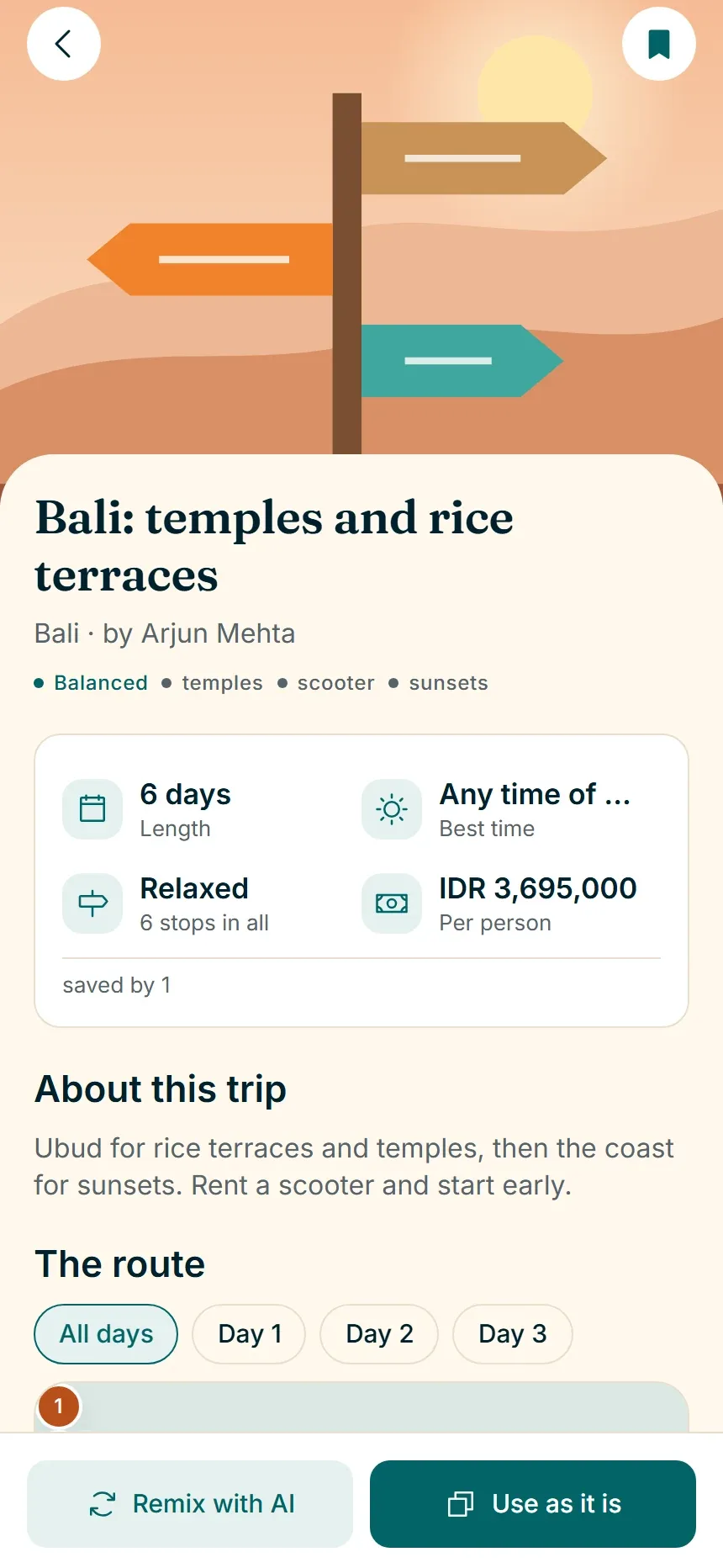
Open Discover to browse trips from real travelers, filtered by budget, style and place.
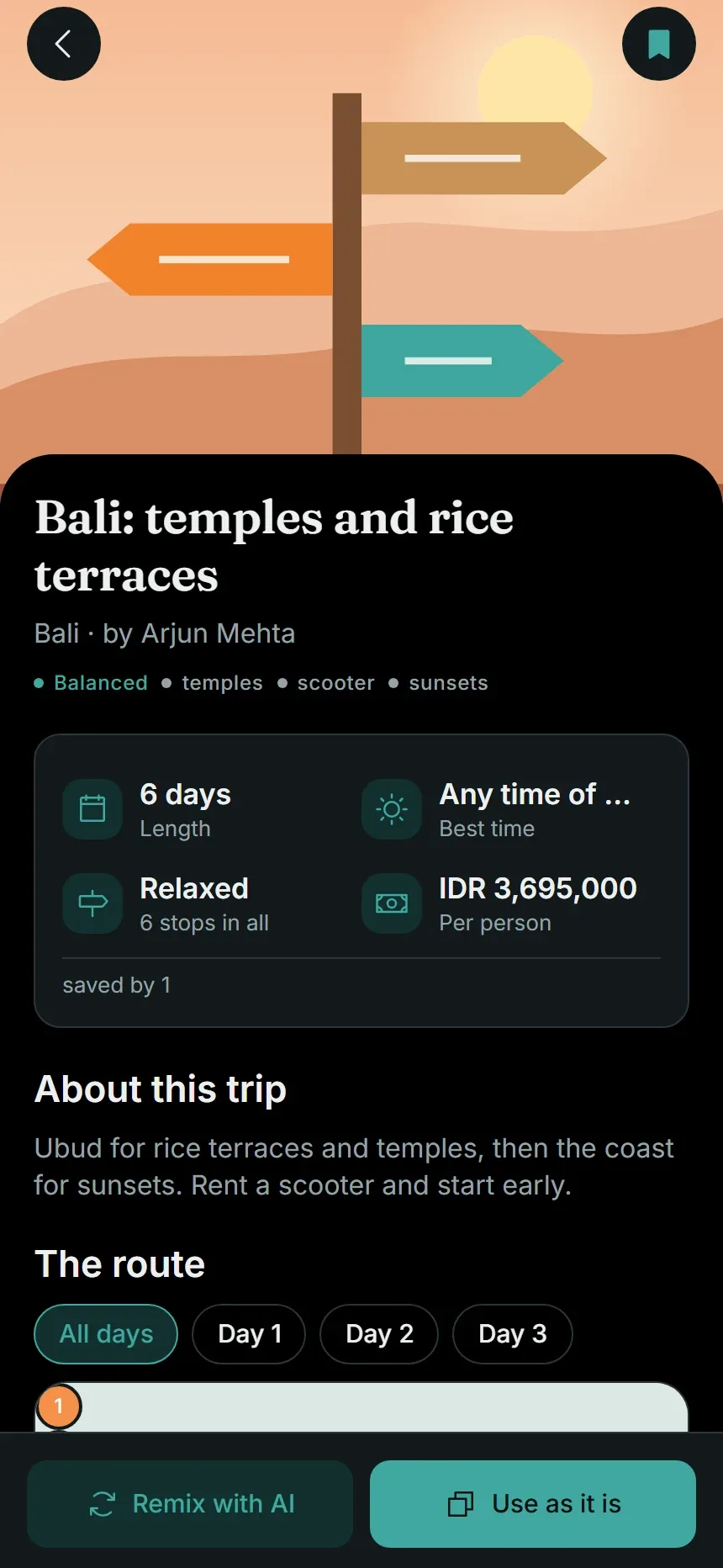
- Open a template to see the route, the day by day and what it costs per person.
- Tap Use as it is to copy it, or Remix with AI to adapt it to your dates and style.
- After your own trip, publish it as a template so others can use it.